Generate and use scenarios
In this tutorial you generate a scenario, look at it and run it with two protocols.
What a scenario is
A scenario is a script of the conditions during a run. It sets, over time:
- the workload: when transactions are created and how big they are,
- the network: the bandwidth of each node,
- the faults: when each node fails and for how long.
In the previous tutorial, SBS drew these changes at random during the run. Each protocol saw different faults. A scenario fixes them in a file, so every run sees exactly the same conditions.
A scenario can also come from real data, for example a trace from a real blockchain.
1. Generate a scenario
The generator lives in src/ScenarioGenerationAndVisualisation:
This saves the scenario to src/Resources/Scenarios/my_scenario.json.
With the default settings, you get a 1200-second scenario for 8 nodes.
It is the same as light_scenario, the example scenario that comes with SBS.
Skip the generation
You can also use light_scenario for the rest of this tutorial.
Replace my_scenario with light_scenario in each step.
The generator works like this:
- It splits the scenario into intervals.
- It gives each node a network type: fast, medium or slow. In each interval, the bandwidth of a node is drawn around the value of its type.
- It picks some faulty nodes. In each interval, some of them fail for a while.
- In each interval, it picks a workload: a number of transactions per second.
Change the length, the number of nodes, the intervals and the seed with command-line options.
uv run generate_scenario.py --help lists them.
The network types, fault lengths, workloads and transaction sizes are set in DEFAULT_PARAMETERS at the bottom of generate_scenario.py.
2. Look at the scenario
Open the scenario notebook:
In the fourth cell, set name = "my_scenario", then run all cells:
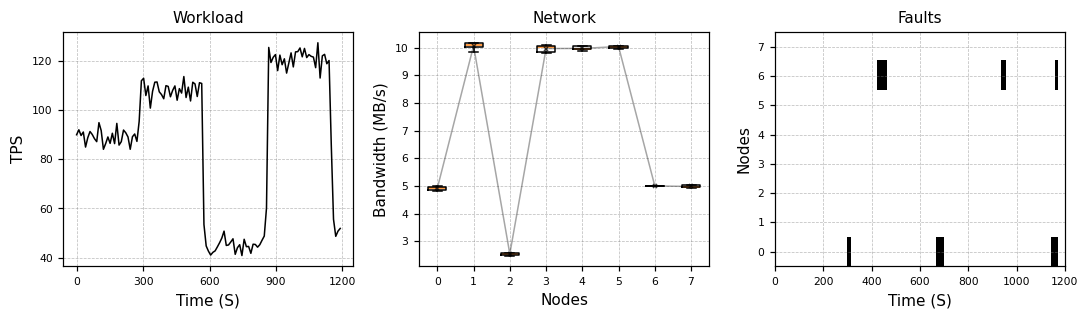
- Workload shows the transactions per second over time. Each interval has its own workload.
- Network shows the bandwidth of each node. Nodes 1, 3, 4 and 5 are fast, nodes 0, 6 and 7 are medium and node 2 is slow.
- Faults shows when each node is offline. Here, nodes 0 and 6 fail a few times.
3. Run the scenario
Go back to src/Simulator and run the scenario with --scenario:
The scenario sets the number of nodes and the length of the run.
Scenario runs use their own config file, src/Configs/scenario.yaml.
The faults are off by default.
Turn them on with simulation.simulate_faults, and run both protocols:
uv run Blockchain.py --scenario my_scenario --set simulation.simulate_faults=true --name pbft_scenario
uv run Blockchain.py --scenario my_scenario --set simulation.simulate_faults=true --cp BigFoot --name bigfoot_scenario
Both runs print the same fault lines, at the same times:
    [FAULT]      297.0 s  node 0 failed
    [FAULT]      316.3 s  node 0 recovered
    [FAULT]      423.0 s  node 6 failed
    [FAULT]      466.4 s  node 6 recovered
The results:
| PBFT | BigFoot | |
|---|---|---|
| Blocks | 974 | 923 |
| Throughput | 88.9 tx/s | 88.9 tx/s |
| Mean latency | 2.24 s | 2.55 s |
Plot both runs with names = ["pbft_scenario.json", "bigfoot_scenario.json"] in snapshot_visualisation.ipynb:
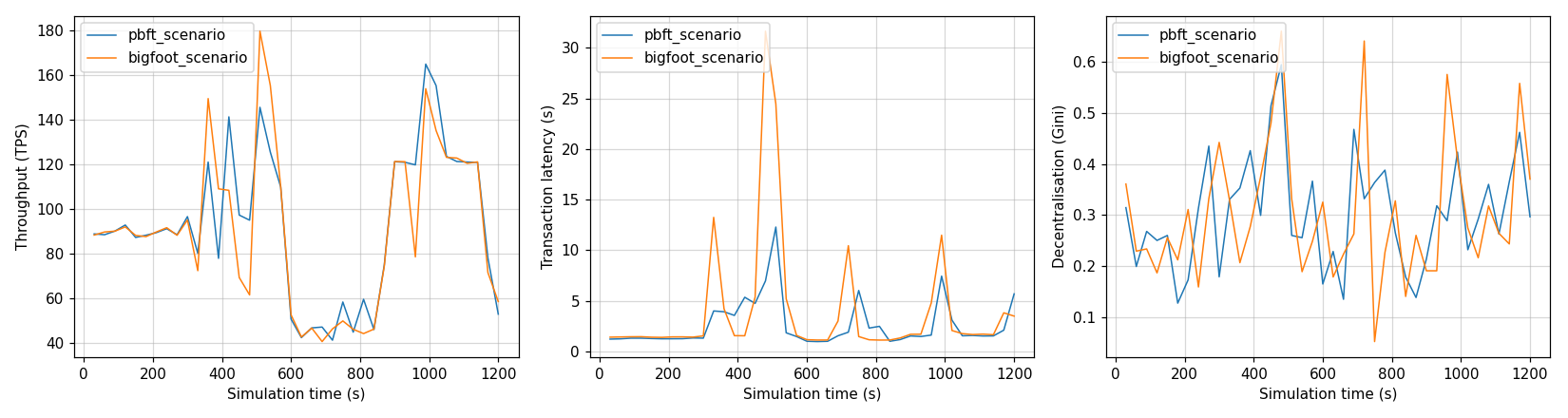
The throughput follows the workload of the scenario. The latency jumps when a node fails, at about 300, 450, 700 and 950 seconds. The jumps are larger for BigFoot, because an offline node blocks its fast path.
The scenario file
A scenario is a JSON file in src/Resources/Scenarios.
To use your own data, write a file with this shape:
{
    "set_up": {"num_nodes": 8, "duration": 1200},
    "intervals": {
        "0": {
            "start": 0,
            "end": 286,
            "network": [[node, bandwidth in MB/s], ...],
            "faults": [[node, fail time, fail duration], ...],
            "transactions": [[creator node, id, timestamp, size in MB], ...]
        },
        ...
    }
}
The transactions must be sorted by timestamp.